Ceres Air System – Guide for Batch Importing KML Field Files to the Remote Controller V1.0

Version | Revision date | Revision department | Modify the description | Note: |
V1.0 | 02/25/2026 | Testing Services Department | First release |
I. Import KML Files into the System
1. Log in to the system:
2. Go to Manage Fields and select Import Fields.
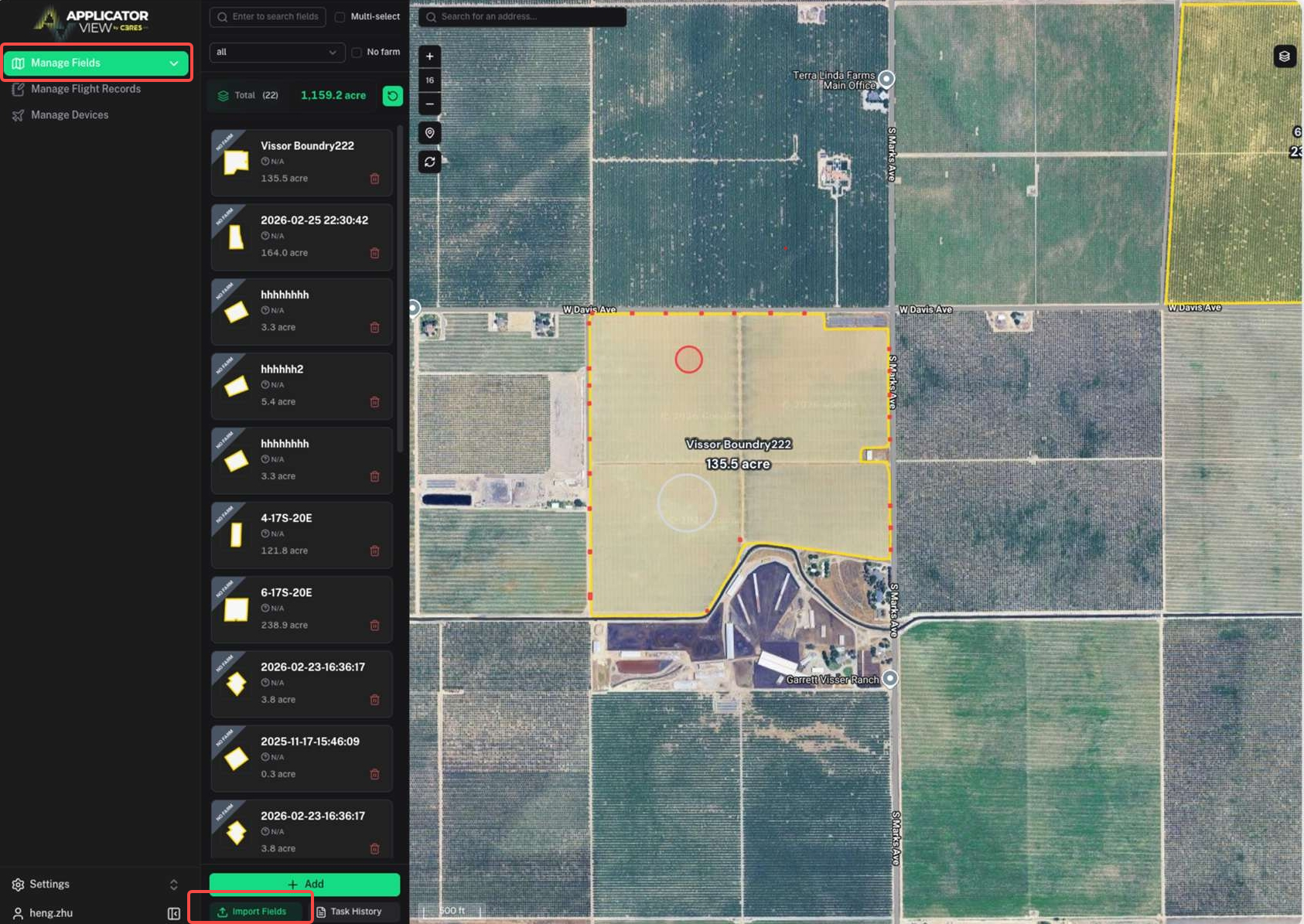
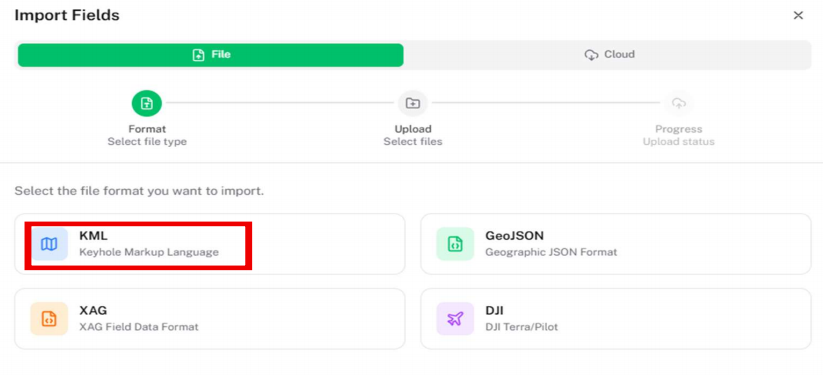
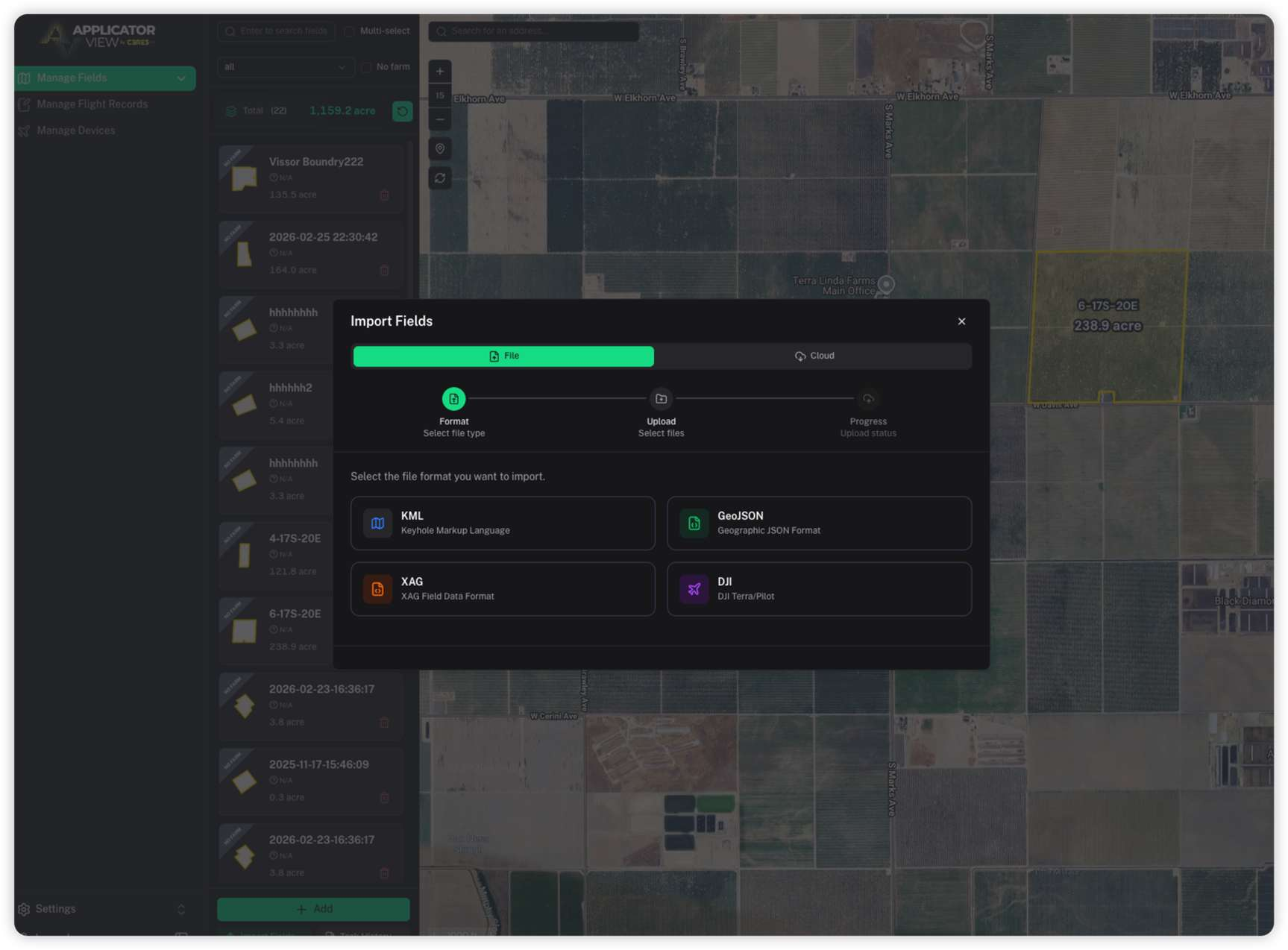
3. Choose KML as the file type.
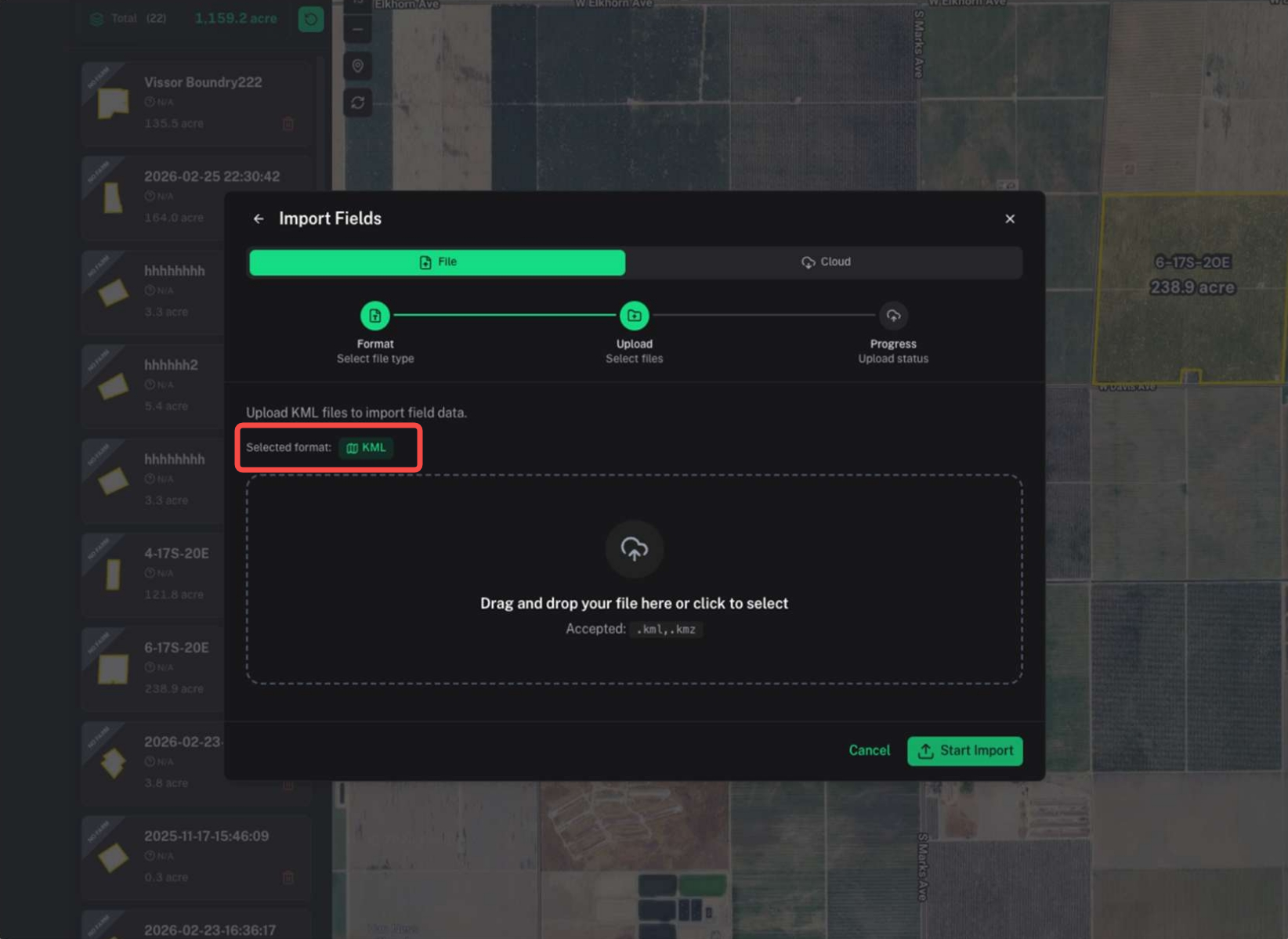
4. Select the KML file(s) to upload (multiple files can be selected).
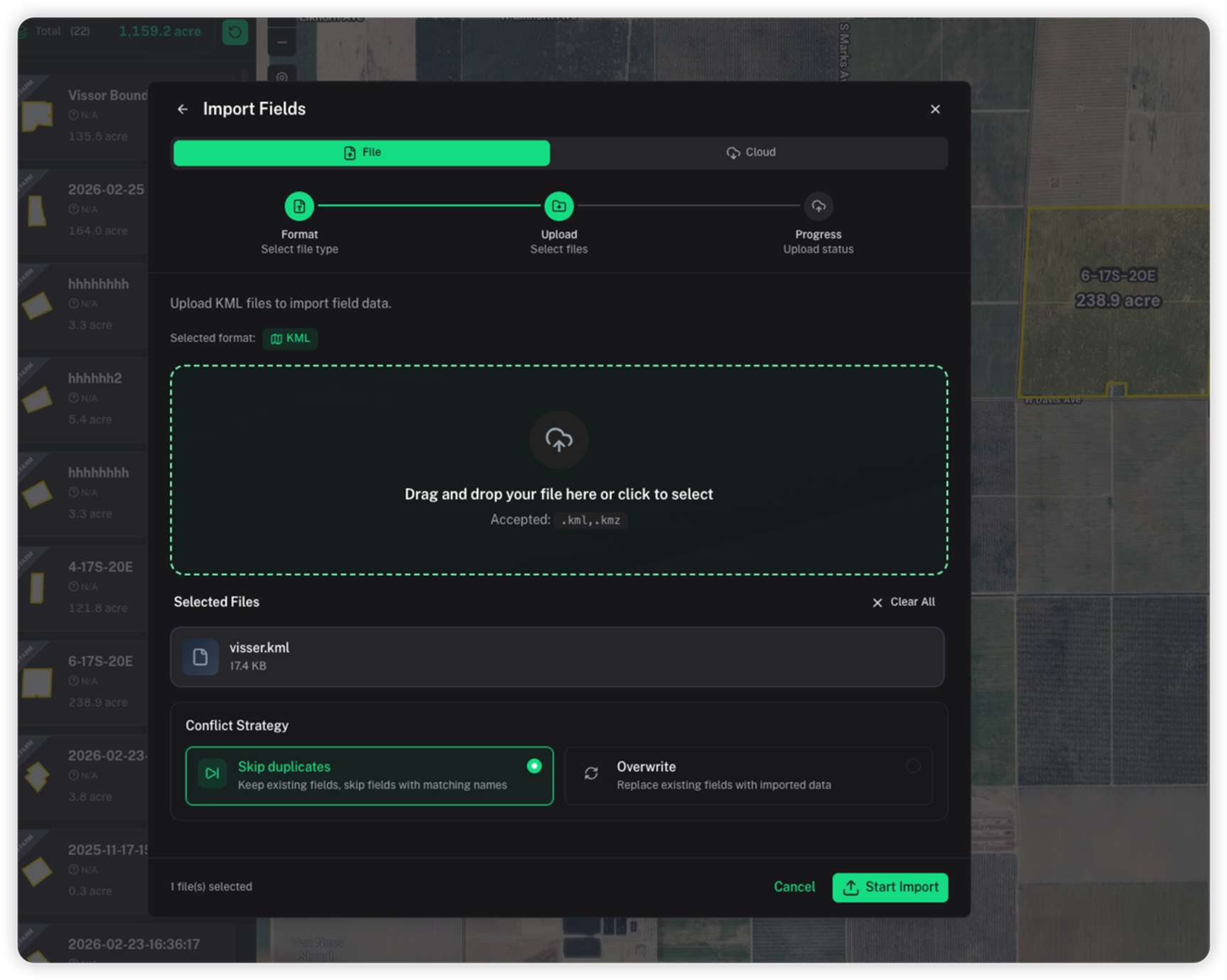
5. Click Start Import.
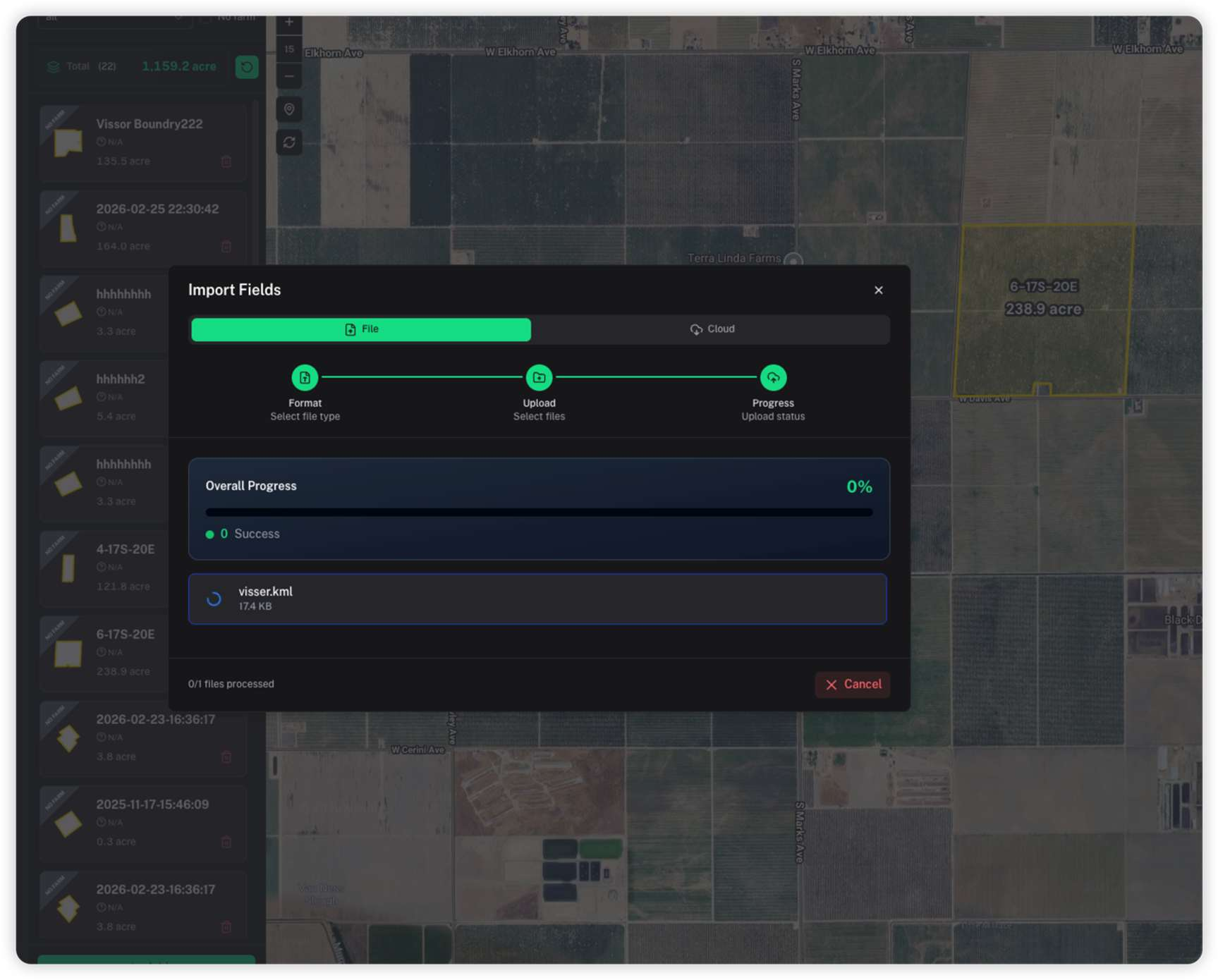
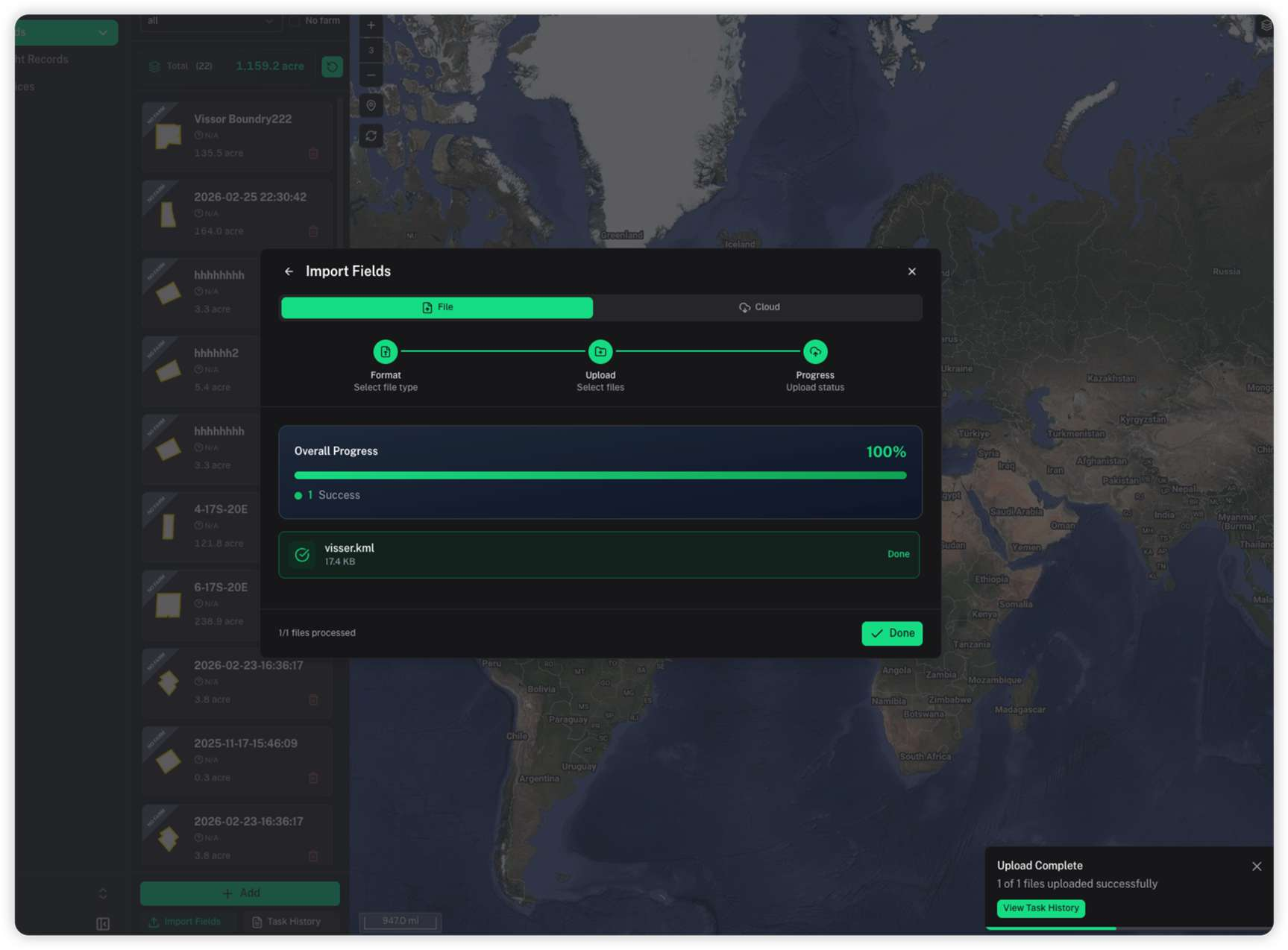
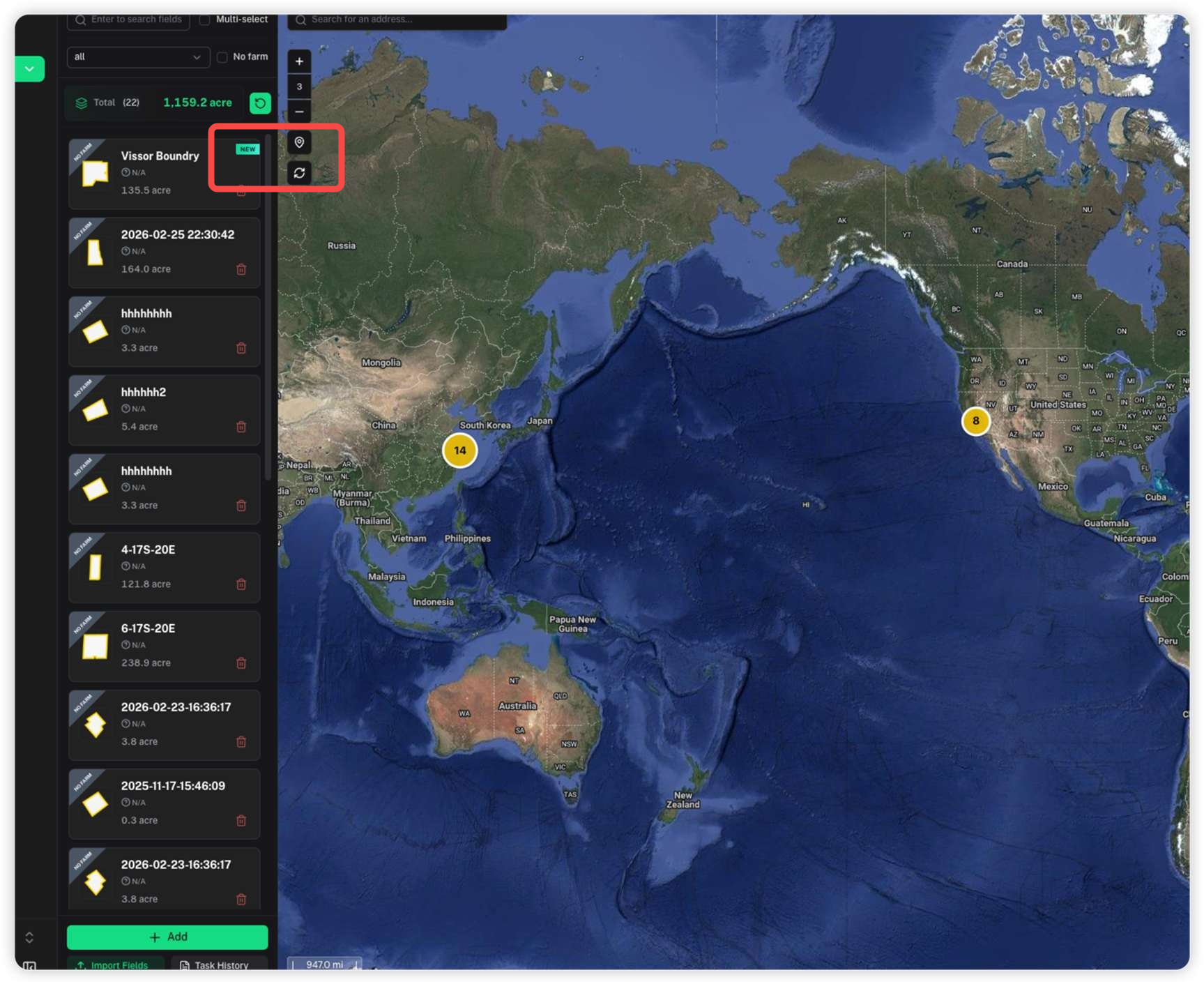
6. Check the import task status.
Wait for the task to complete. You can refresh the page or the field list.
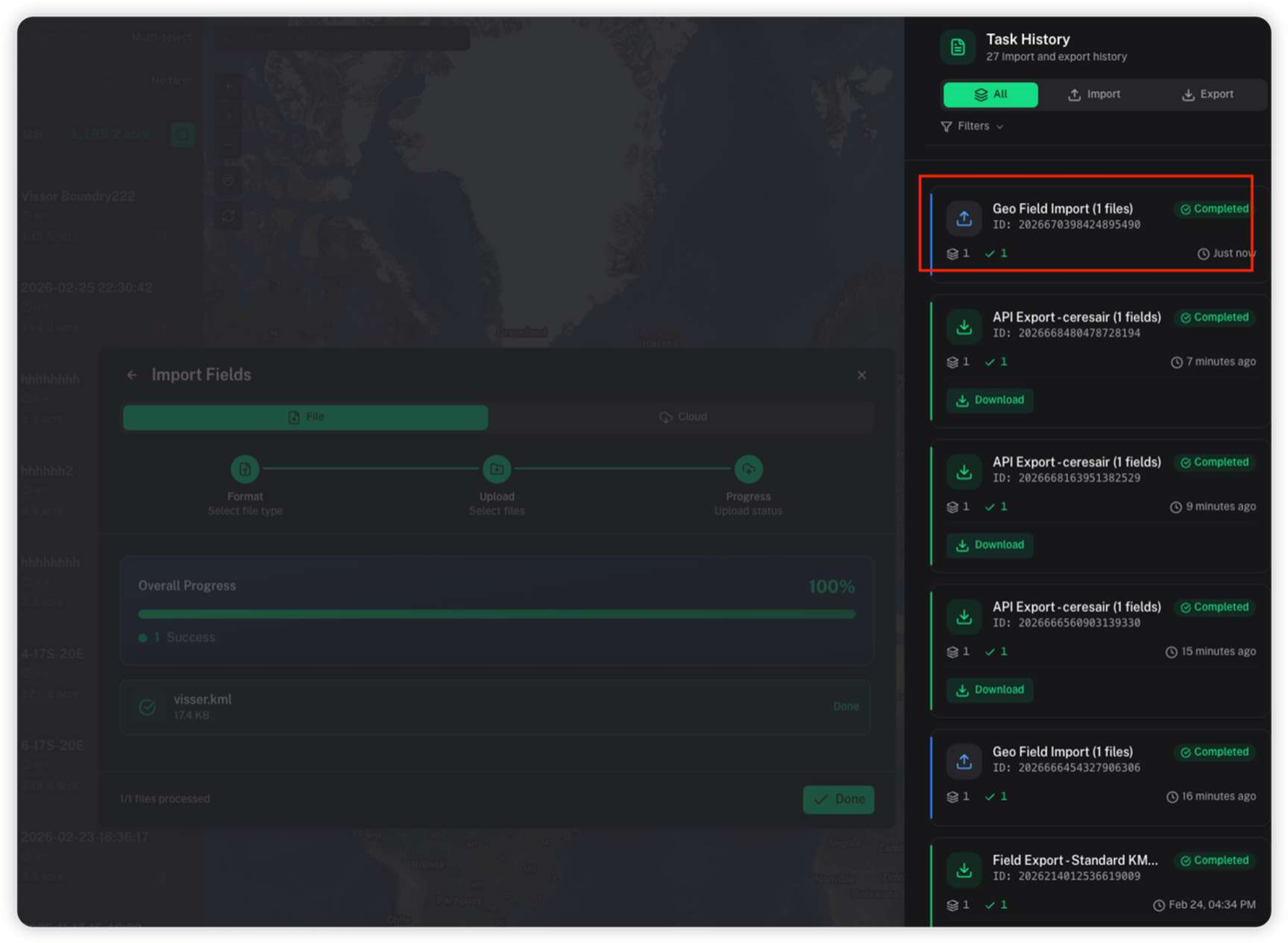
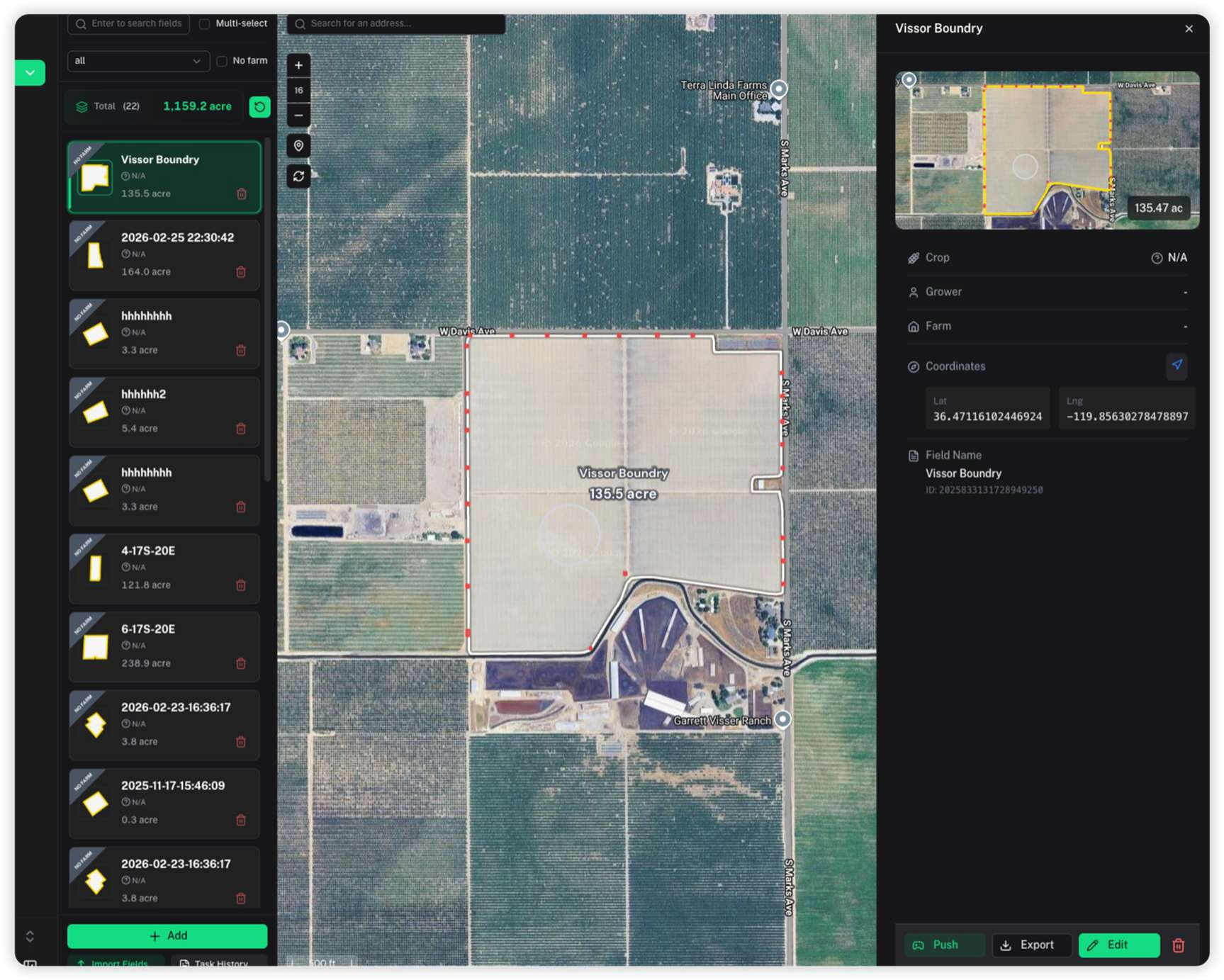
7. Newly imported fields will be marked as “new.” Click on a field to view its details.
II. Push Fields to the Remote Controller
1. In the field details page, click the Push button.
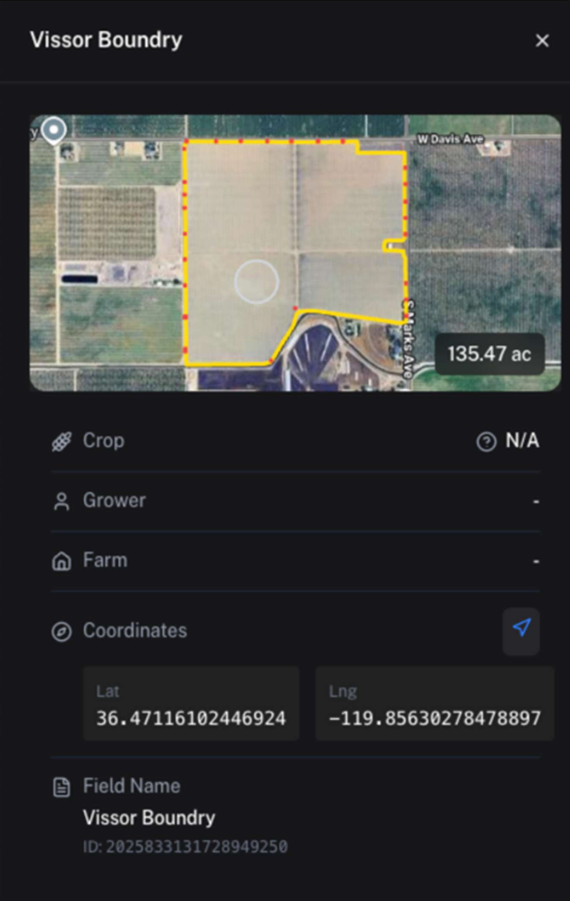
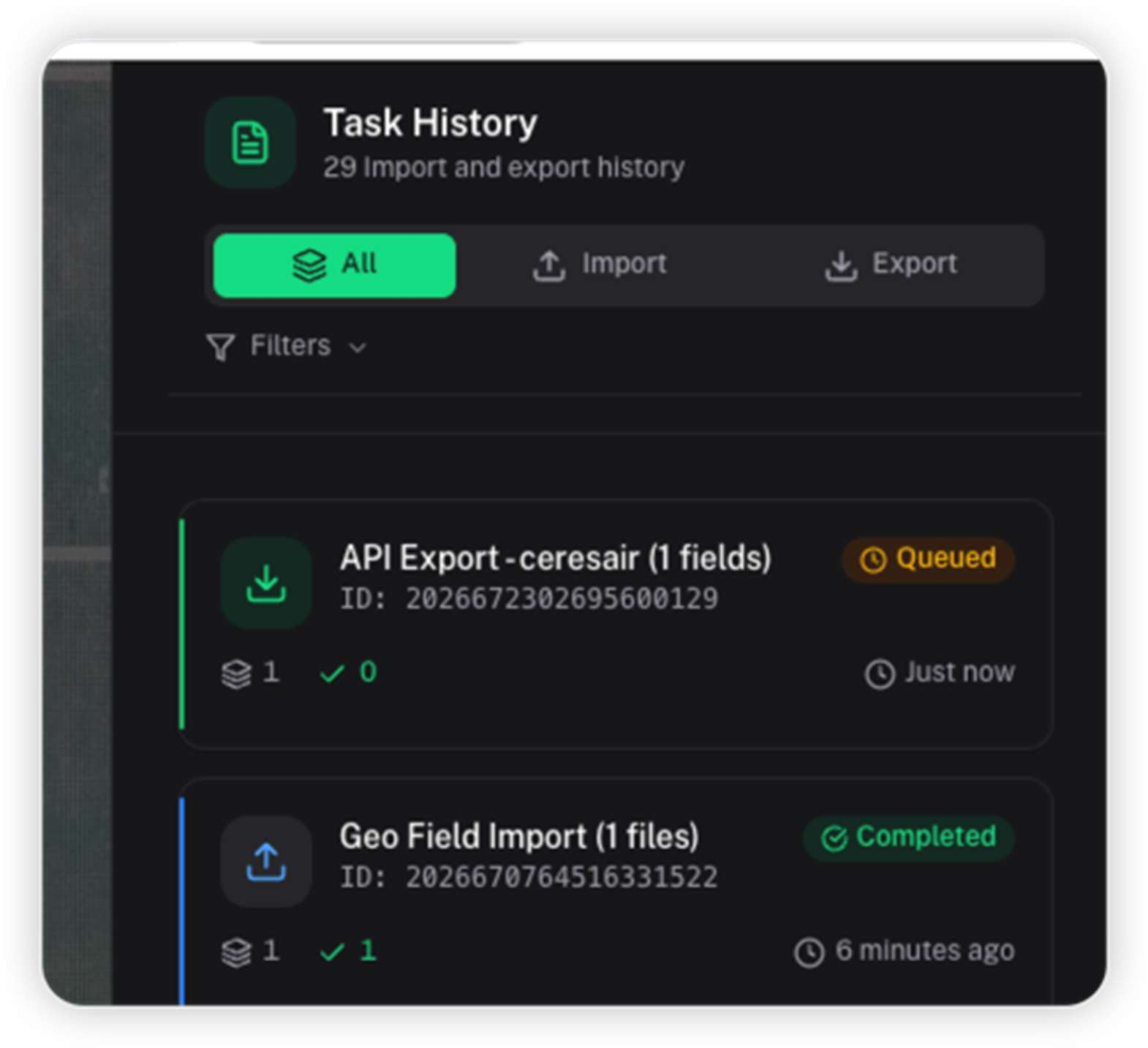
2. Monitor the task status to confirm completion.
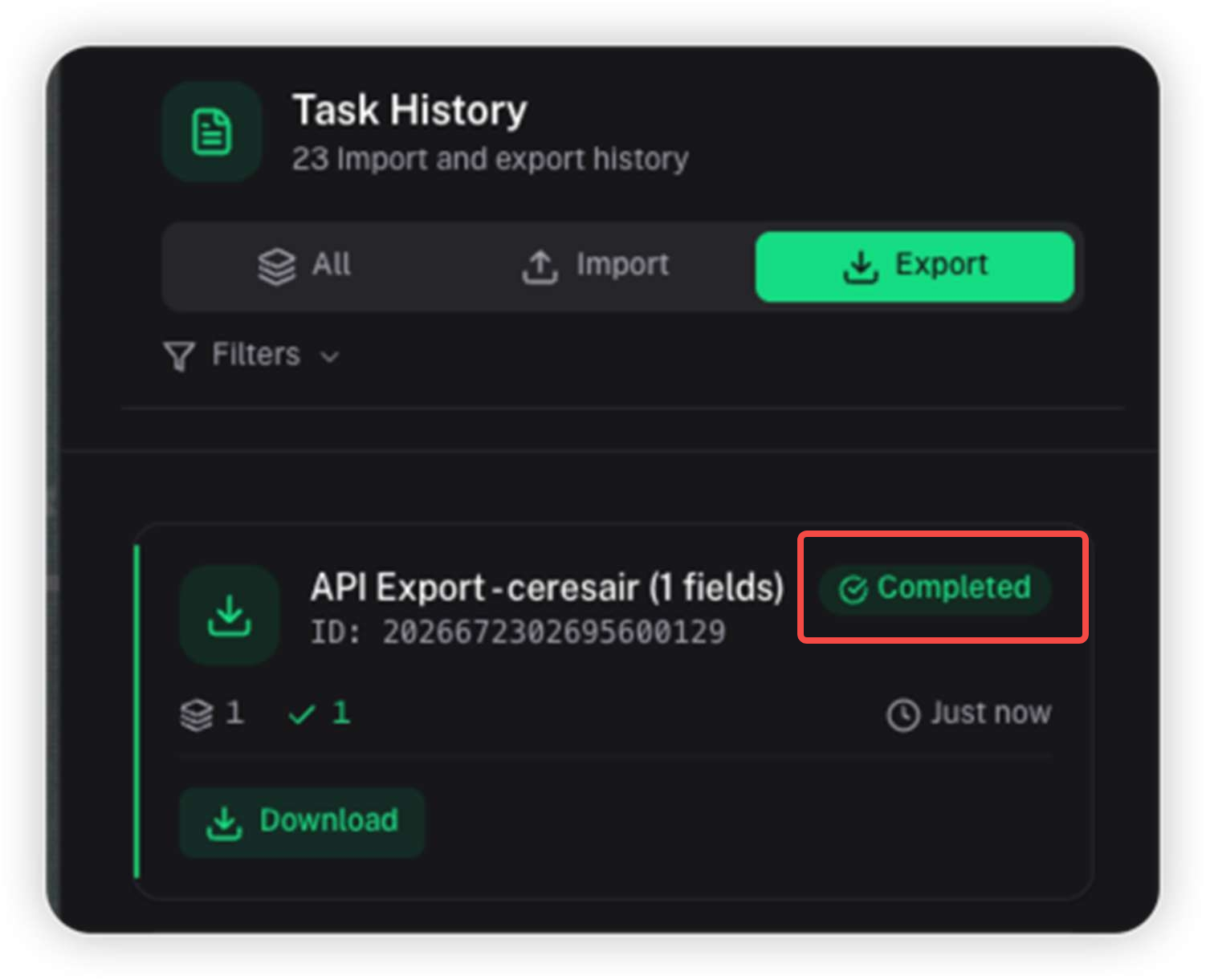
2. Turn on the remote controller.

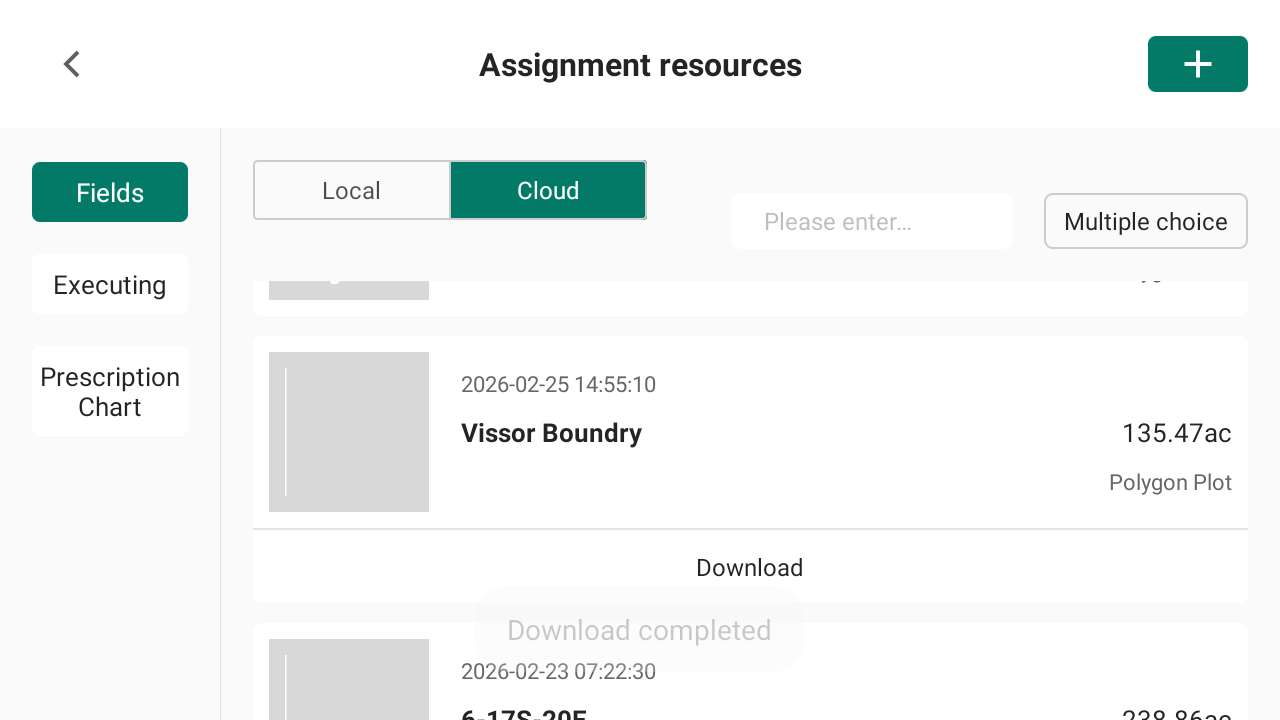
3. Open Assignment Resources.
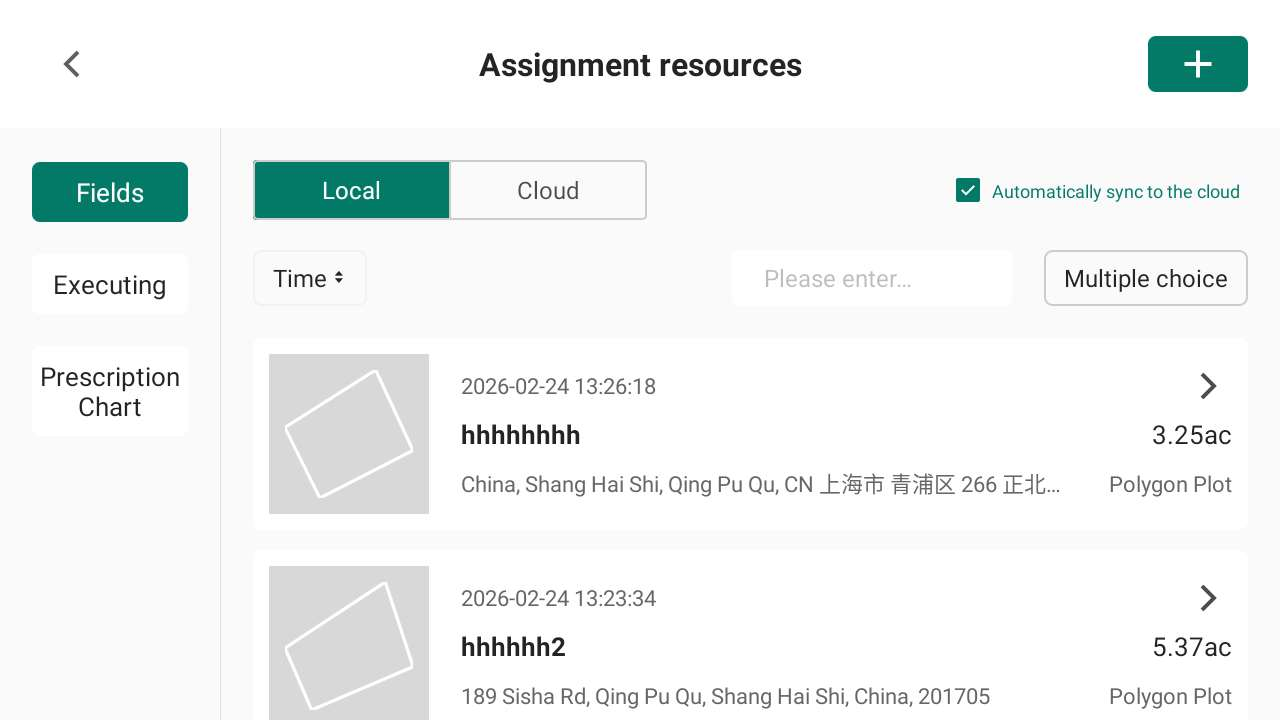
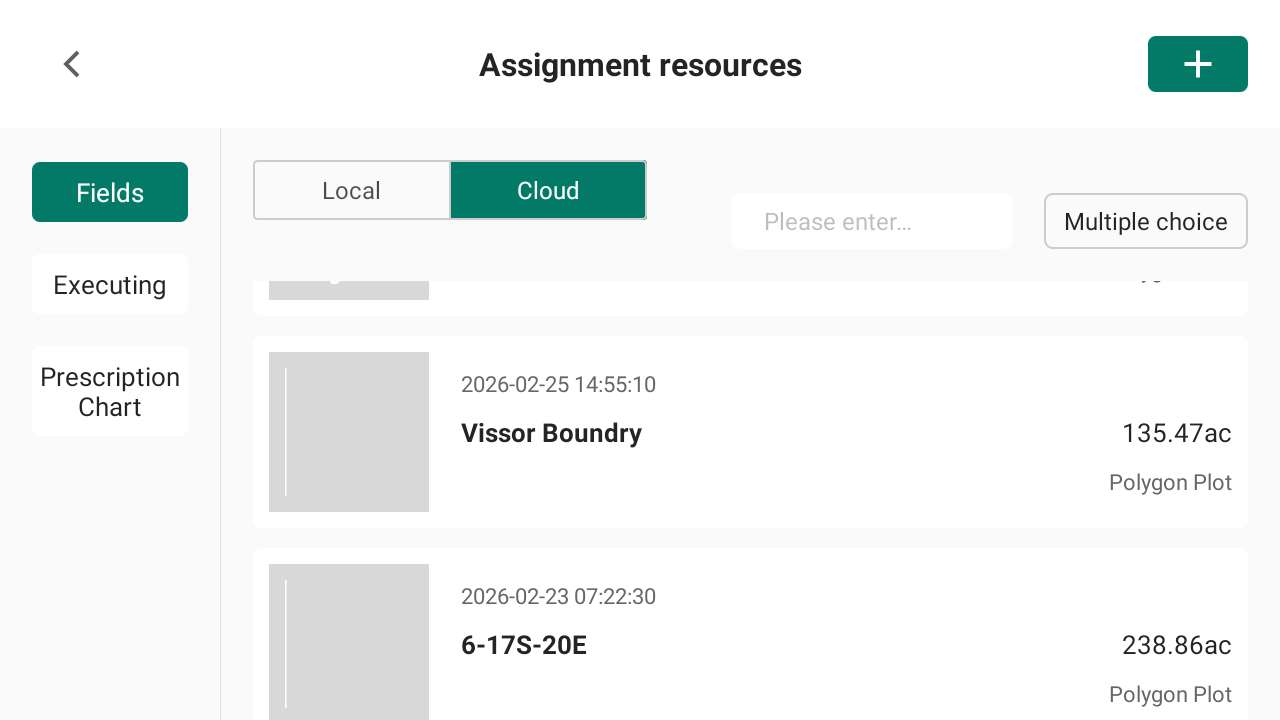
4. Select Cloud, and locate the pushed field
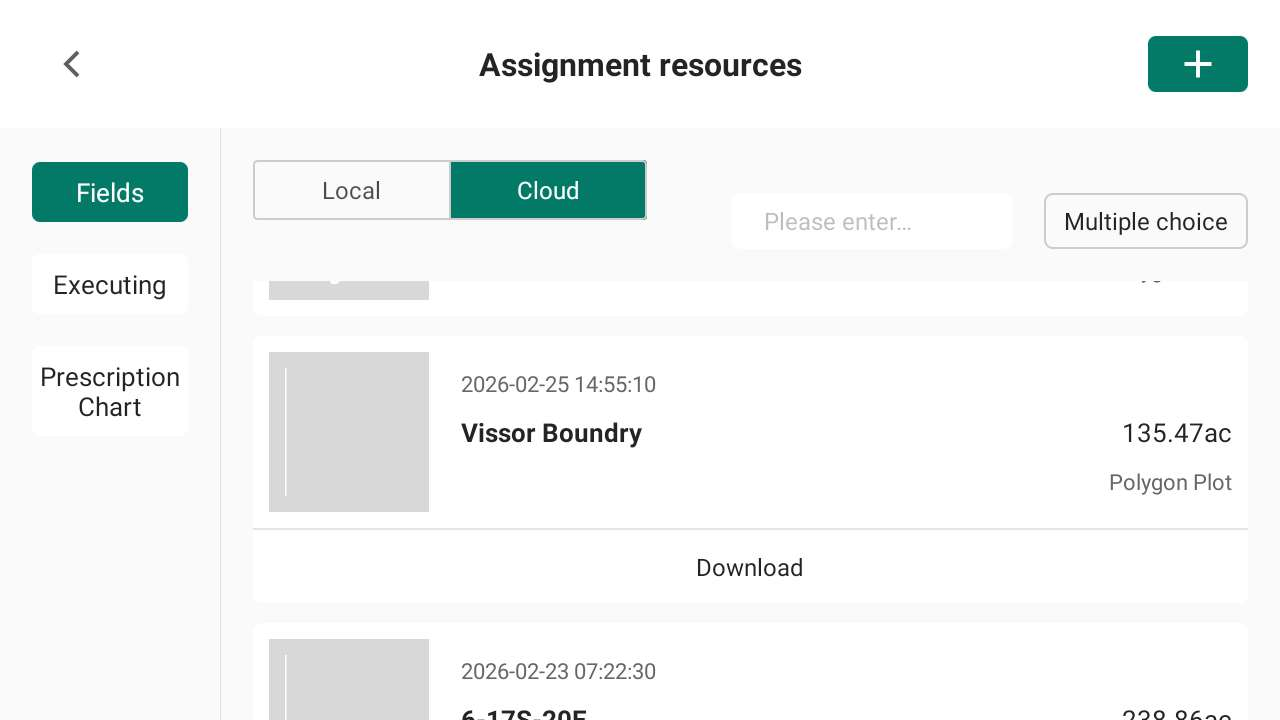
5. Select the field and click Download.
6. Switch to Local storage
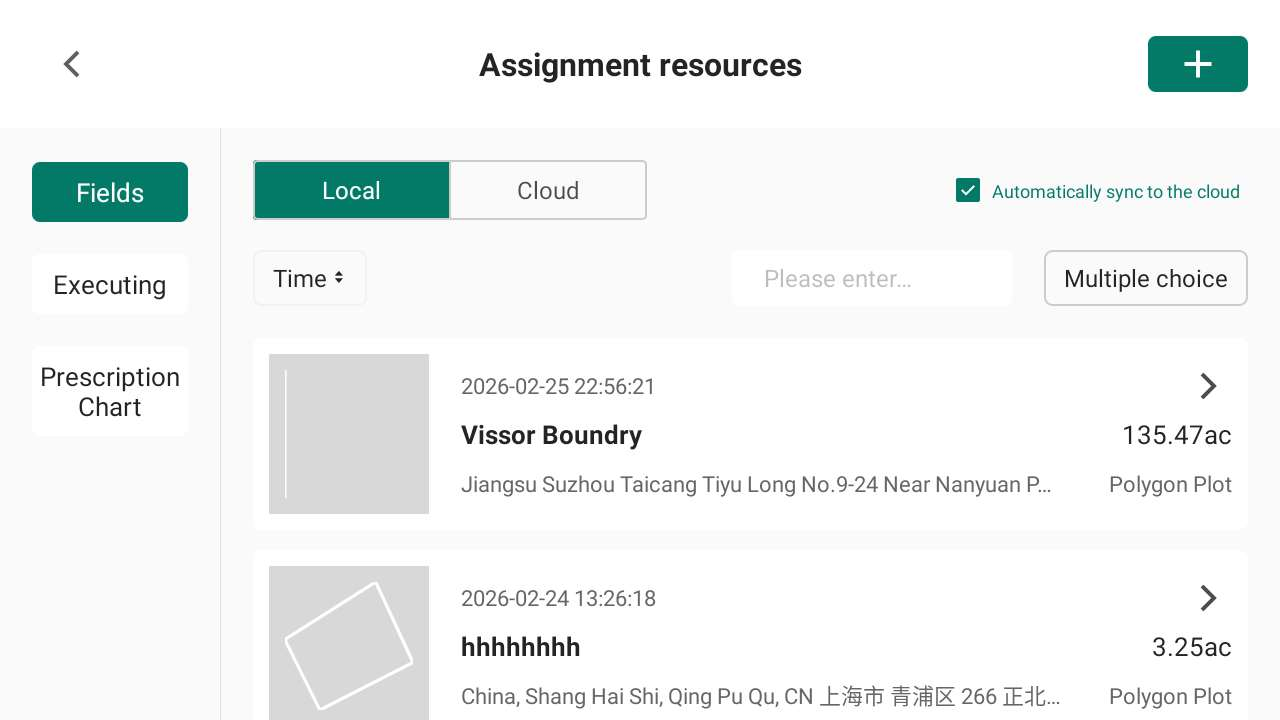
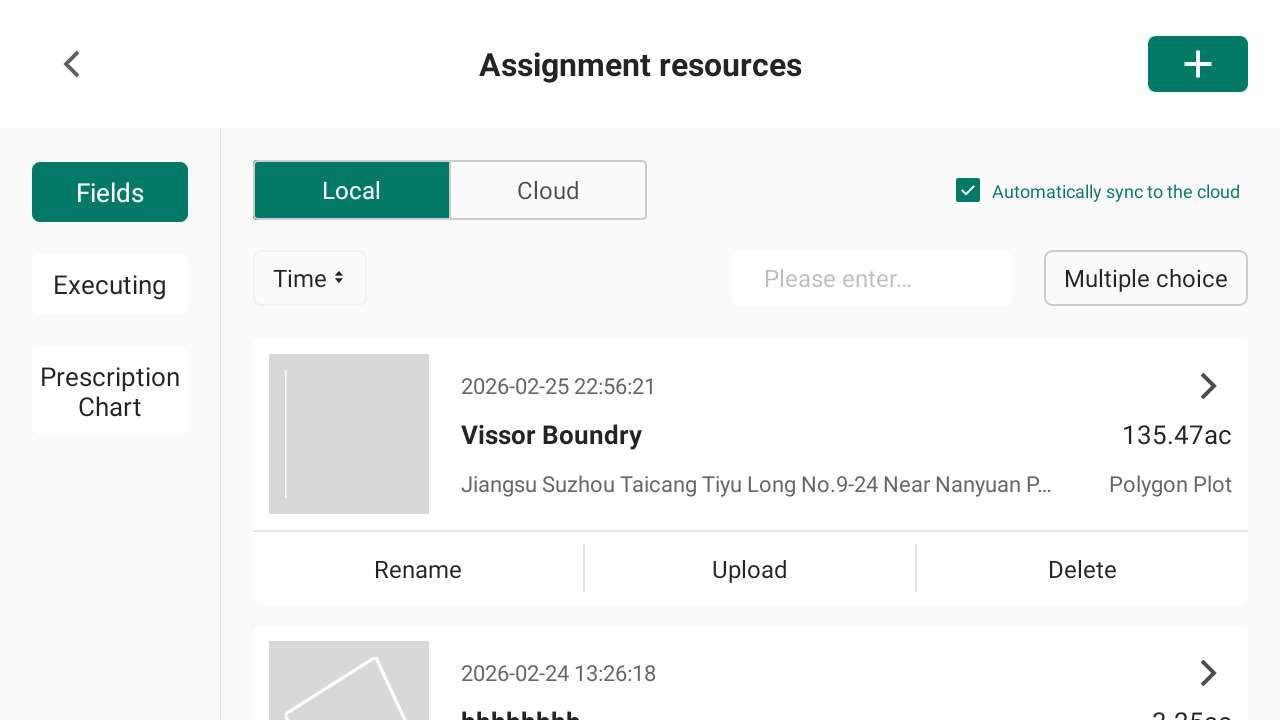
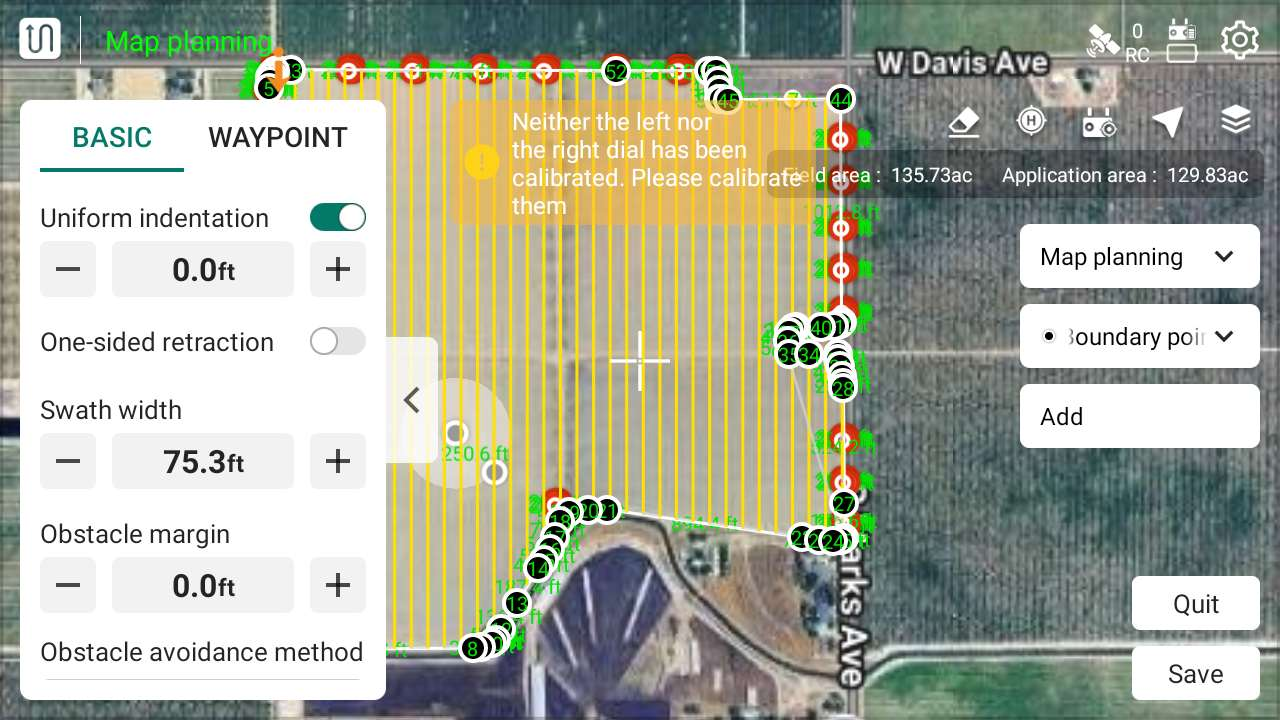
7. Open the field to preview it.
The field can now be edited if needed.